We are excited to announce the rollout of a major enhancement designed to make order creation faster, easier, and more efficient for merchants: Image Scan Upload.
This innovative feature allows merchants to create orders simply by uploading a photo of a handwritten order form. The system will automatically extract and fill in the order details—eliminating manual typing and reducing the risk of errors.
🚀 What’s New? #
✨ Image Scan Upload (OCR-Based Order Creation) #
Merchants can now:
- Fill out a simple, printed template by hand
- Upload a clear photo or scanned image
- Let the system read and auto-fill order details instantly
- Review, correct (if needed), and submit the order with ease
This is especially useful for merchants who handle large volumes of daily orders or frequently prepare handwritten order slips.
👨💼 For Staff: Enabling Image Scan Upload for Merchants #
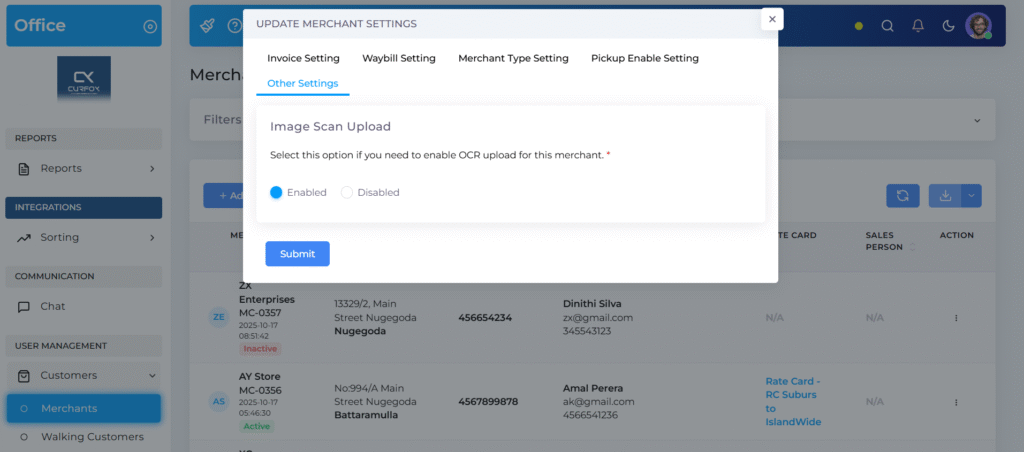
This feature is disabled by default and can be enabled for selected merchants.
How to Enable: #
- Log in to the Office Portal
- Go to User Management > Customers > Merchants
- Find the merchant → Click Action (3 dots)
- Select Manage Merchant Settings
- Navigate to the Other Settings tab
- Enable the option Image Scan Upload
- Click Submit
Once enabled, the merchant will see a new Image Scan Upload tab in their portal.
🛍️ How to Use Image Scan Upload #
Creating an order is now as simple as writing on a form and taking a photo.
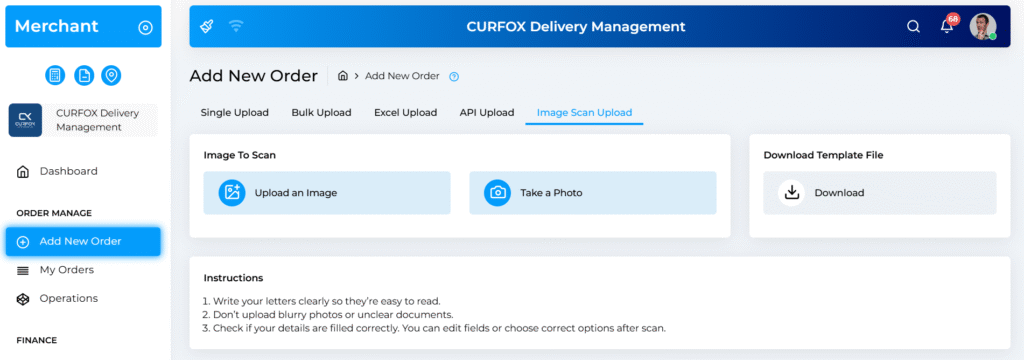
📝 Step 1: Download the Official Template #
- Go to Add New Order > Image Scan Upload
- Click Download under Template File to get the OCR UPLOAD FORM
- Print the template
✍️ Step 2: Fill Out the Form by Hand #
To ensure accurate scanning:
- Write clearly and neatly
- Use BLOCK CAPITAL LETTERS
- Fill out key details: Order No., COD Amount, Weight, Customer Name, Address, Phone Number
📸 Step 3: Take a Clear Photo or Scan #
Ensure:
- The image is not blurry
- Good lighting, no shadows
- The full page is visible
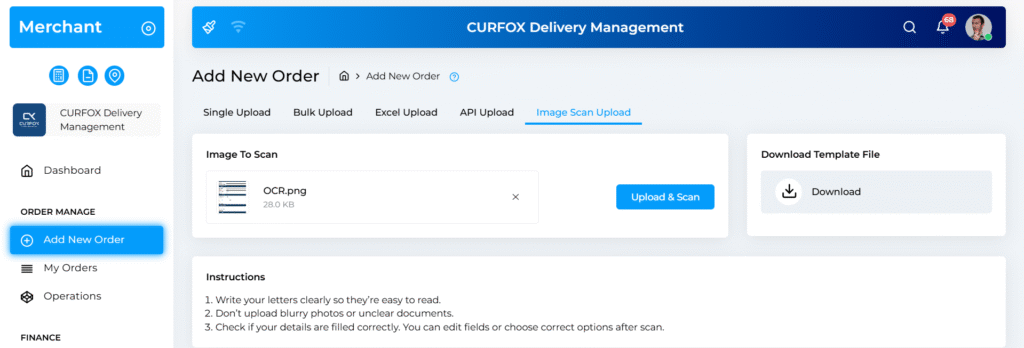
📤 Step 4: Upload & Scan #
- Click Upload an Image
- Select your photo or use Take a Photo (mobile only)
- Click Upload & Scan
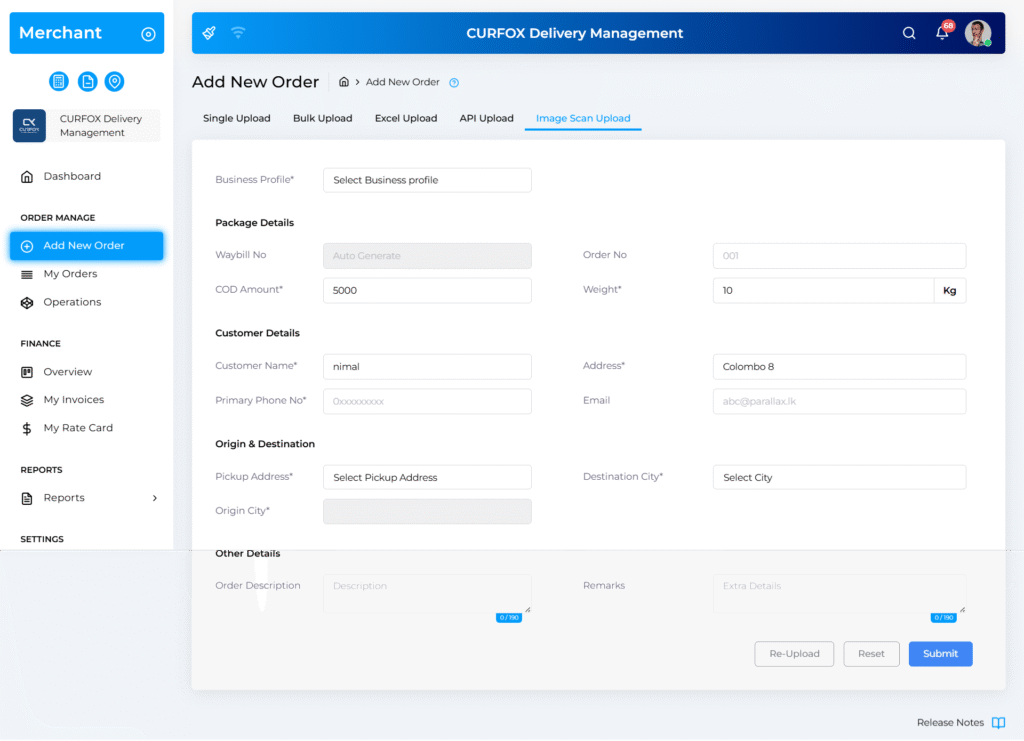
🔍 Step 5: Review & Complete #
The system auto-fills detected fields such as:
- COD Amount
- Weight
- Customer Name
- Phone
- Address
You can:
- Correct any misread values
- Fill required fields like Destination City
If needed:
- Reset to clear all fields
- Re-upload another image
✅ Step 6: Submit Your Order #
Once all details are accurate, click Submit.
Your order is successfully created.
🎉 Summary #
The new Image Scan Upload feature is designed to:
- Save time
- Reduce manual work
- Minimize errors
- Improve order entry efficiency
This is just the beginning as we continue to innovate and introduce automation to enhance your experience.


