Skip to content

Curfox Docs

Curfox Docs

Back to Web

๐Ÿš€ Image Scan Upload

Home๐Ÿš€ Image Scan Upload

RELEASE NOTES

41
  • Pre Release Note V3.33.0
  • Release Note V3.32.0
  • Release Note V3.31.0
  • Release Note V3.30.0
  • Release Note V3.29.0
  • Release Note V3.28.0
  • Release Note V3.27.0
  • Release Note V3.26.0
  • Release Note V3.25.0
  • Release Note V3.24.0
  • LOGIN AND START THE JOURNEY WITH CURFOX
  • Introduction to Curfox
  • What Intricate Ecosystems Thrive Along the Banks of Rivers?
  • ๐Ÿš€ New Feature Release: Billing City Override Setting
  • ๐Ÿš€ Enhanced SMS Notifications for Rescheduled Deliveries
  • ๐Ÿš€Bypass ‘Dispatch from Origin Warehouse’ Status for Invalid Destination Cases
  • ๐Ÿš€Sorting History for Enhanced Tracking
  • ๐Ÿš€Enhanced SMS Provider Configuration
  • ๐Ÿš€Rate Card Approval Option – Phase 1
  • ๐Ÿš€Warehouse Sorting Device Management
  • ๐Ÿš€WhatsApp Messaging Integration
  • ๐Ÿš€Proof Upload Feature
  • ๐Ÿš€Filter Saving Option
  • Pre Release Note – V3.38.0.14
  • ๐Ÿš€ Pre Release Note – V3.38.11
  • Pre Release Note V3.38.0.13
  • ๐Ÿš€ Release Note : Add Redelivery Flag for Failed to Deliver
  • Release Note : New Curfox Rider App
  • Release Note 3.38.0.12
  • Release Note – 3.38.10
  • Release Note 3.38.0.10
  • ๐Ÿ“Œ Release Note: Redelivery Flag for Verify Failed to Deliver
  • Release 3.38.07
  • Release 3.38.08
  • ๐Ÿšš Release Note: New Dispatch Reporting Module
  • Release Note V3.38.0.6
  • ๐Ÿš€ Flag Management Feature
  • ๐Ÿš€New Status for Status Flow “Verify Failed to Deliver”
  • ๐Ÿš€ Image Scan Upload
  • ๐Ÿš€Geofencing Module
  • Release Note V3.38.6

RIDER APP

2
  • User Guide
  • Release Note : New Curfox Rider App

LOCAL RELEASE NOTES

8
  • Pre Release Note – V3.38.0.14
  • Pre Release Note V3.38.0.13
  • ๐Ÿš€ Release Note : Add Redelivery Flag for Failed to Deliver
  • Release Note : New Curfox Rider App
  • Release Note 3.38.0.12
  • ๐Ÿ“Œ Release Note: Redelivery Flag for Verify Failed to Deliver
  • Release Note 3.38.0.10
  • ๐Ÿš€ Pre-Deposit Merchant Invoice Approval Process

INTERNATIONAL RELEASE NOTES

2
  • ๐Ÿš€ Pre Release Note – V3.38.11
  • Release Note – 3.38.10

MERCHANT PORTAL

1
  • LOGIN AND START THE JOURNEY WITH CURFOX

STAFF PORTAL

1
  • LOGIN AND START THE JOURNEY WITH CURFOX

OVERVIEW

1
  • Introduction to Curfox

USER GUIDES

1
  • ๐Ÿ“šUser Guide: WhatsApp Message API Setup
View Categories
  • Home
  • Docs
  • RELEASE NOTES
  • ๐Ÿš€ Image Scan Upload

๐Ÿš€ Image Scan Upload

1 min read

We are excited to announce the rollout of a major enhancement designed to make order creation faster, easier, and more efficient for merchants: Image Scan Upload.

This innovative feature allows merchants to create orders simply by uploading a photo of a handwritten order form. The system will automatically extract and fill in the order detailsโ€”eliminating manual typing and reducing the risk of errors.


๐Ÿš€ Whatโ€™s New? #

โœจ Image Scan Upload (OCR-Based Order Creation) #

Merchants can now:

  • Fill out a simple, printed template by hand
  • Upload a clear photo or scanned image
  • Let the system read and auto-fill order details instantly
  • Review, correct (if needed), and submit the order with ease

This is especially useful for merchants who handle large volumes of daily orders or frequently prepare handwritten order slips.


๐Ÿ‘จโ€๐Ÿ’ผ For Staff: Enabling Image Scan Upload for Merchants #

This feature is disabled by default and can be enabled for selected merchants.

How to Enable: #

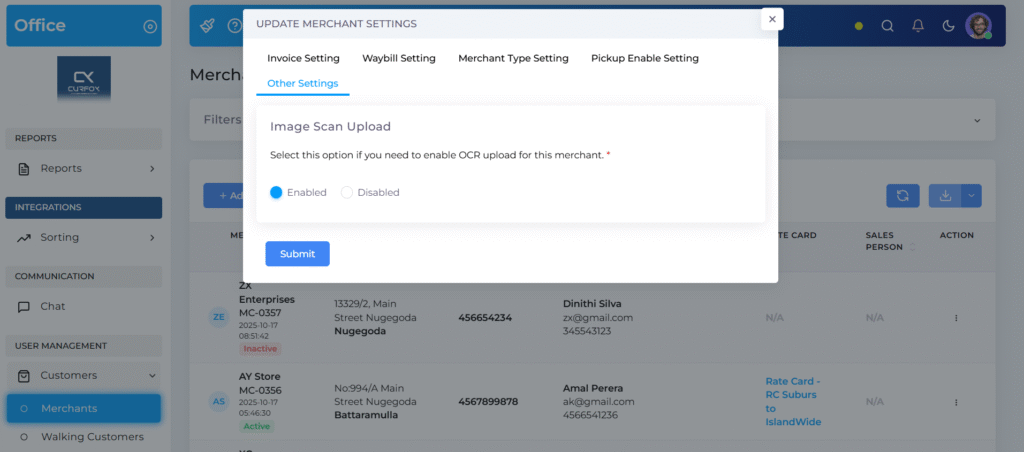
  1. Log in to the Office Portal
  2. Go to User Management > Customers > Merchants
  3. Find the merchant โ†’ Click Action (3 dots)
  4. Select Manage Merchant Settings
  5. Navigate to the Other Settings tab
  6. Enable the option Image Scan Upload
  7. Click Submit

Once enabled, the merchant will see a new Image Scan Upload tab in their portal.

๐Ÿ›๏ธ How to Use Image Scan Upload #

Creating an order is now as simple as writing on a form and taking a photo.

๐Ÿ“ Step 1: Download the Official Template #

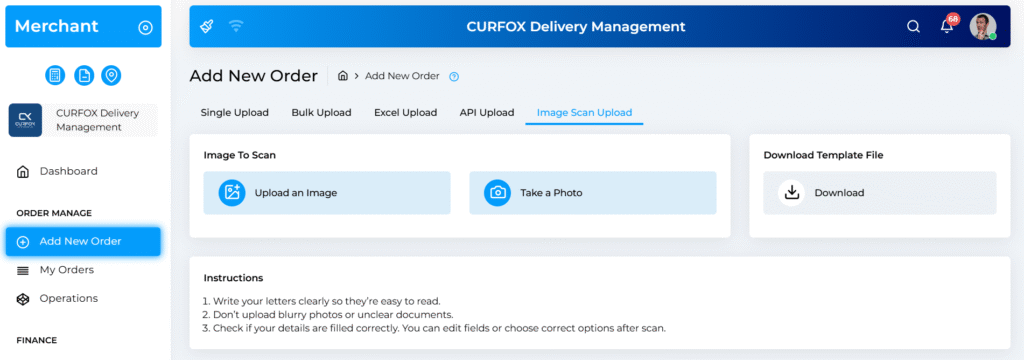
  • Go to Add New Order > Image Scan Upload
  • Click Download under Template File to get the OCR UPLOAD FORM
  • Print the template

โœ๏ธ Step 2: Fill Out the Form by Hand #

To ensure accurate scanning:

  • Write clearly and neatly
  • Use BLOCK CAPITAL LETTERS
  • Fill out key details: Order No., COD Amount, Weight, Customer Name, Address, Phone Number

๐Ÿ“ธ Step 3: Take a Clear Photo or Scan #

Ensure:

  • The image is not blurry
  • Good lighting, no shadows
  • The full page is visible

๐Ÿ“ค Step 4: Upload & Scan #

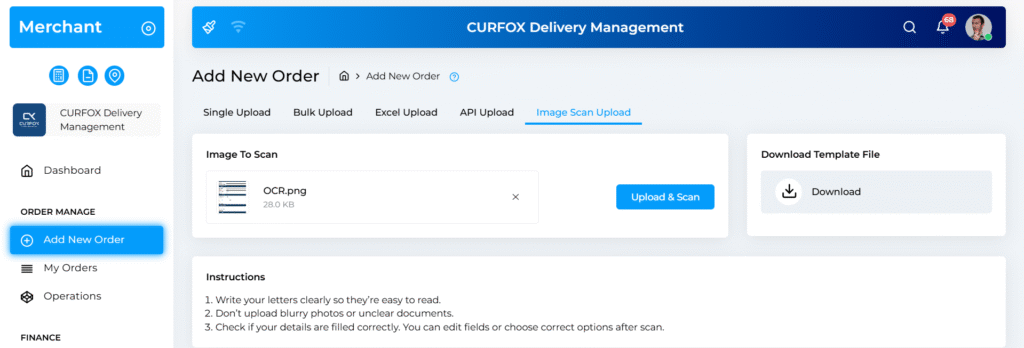
  • Click Upload an Image
  • Select your photo or use Take a Photo (mobile only)
  • Click Upload & Scan

๐Ÿ” Step 5: Review & Complete #

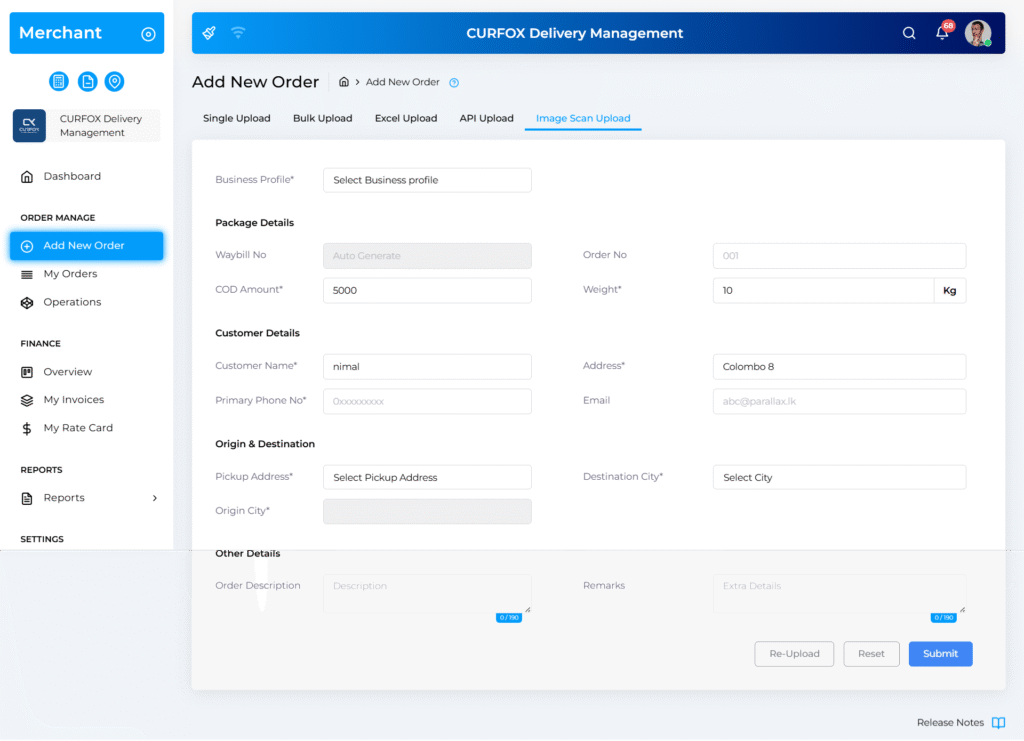
The system auto-fills detected fields such as:

  • COD Amount
  • Weight
  • Customer Name
  • Phone
  • Address

You can:

  • Correct any misread values
  • Fill required fields like Destination City

If needed:

  • Reset to clear all fields
  • Re-upload another image

โœ… Step 6: Submit Your Order #

Once all details are accurate, click Submit.
Your order is successfully created.

๐ŸŽ‰ Summary #

The new Image Scan Upload feature is designed to:

  • Save time
  • Reduce manual work
  • Minimize errors
  • Improve order entry efficiency

This is just the beginning as we continue to innovate and introduce automation to enhance your experience.

Updated on November 16, 2025

What are your Feelings

  • Happy
  • Normal
  • Sad

Share This Article :

  • Facebook
  • X
  • LinkedIn
  • Pinterest
๐Ÿš€New Status for Status Flow “Verify Failed to Deliver”๐Ÿš€Geofencing Module

Powered by BetterDocs

Leave a Reply Cancel reply

Your email address will not be published. Required fields are marked *

Table of Contents
  • ๐Ÿš€ Whatโ€™s New?
    • โœจ Image Scan Upload (OCR-Based Order Creation)
  • ๐Ÿ‘จโ€๐Ÿ’ผ For Staff: Enabling Image Scan Upload for Merchants
    • How to Enable:
  • ๐Ÿ›๏ธ How to Use Image Scan Upload
    • ๐Ÿ“ Step 1: Download the Official Template
    • โœ๏ธ Step 2: Fill Out the Form by Hand
    • ๐Ÿ“ธ Step 3: Take a Clear Photo or Scan
    • ๐Ÿ“ค Step 4: Upload & Scan
    • ๐Ÿ” Step 5: Review & Complete
    • โœ… Step 6: Submit Your Order
  • ๐ŸŽ‰ Summary

ยฉ 2025 Curfox Docs - All Rights Reserved Parallax Technologies